Data Connector Configuration
Overview
This guide covers how to configure Data Connectors in Salesforce. There are two layers of configuration:
General configuration – Applies to all data connectors
Connector-specific configuration – Applies to individual connectors like
Recherche Entreprise,iRaiser Connector, etc.
General Configuration
These steps must be completed for every data connector:
- Assign Permission Sets – Give users access.
- Create a Data Connector – Define the connector and its type.
Access & Permissions
To ensure the module works correctly and securely, users must be granted access to key components:
Permission Set: Mobee Data Connector
Assign this permission set to all users who will use the Data Connector. It includes:
- Access to Apex classes used by the connector
- Access to Lightning Web Components (LWC)
- Access to the external credentials used by the named credentials that rely on it
- Object and field permissions (read/create on the connector objects)
❗ Without this permission set, users will encounter authorization errors when attempting to use the connector.
Steps to Assign the Permission Set
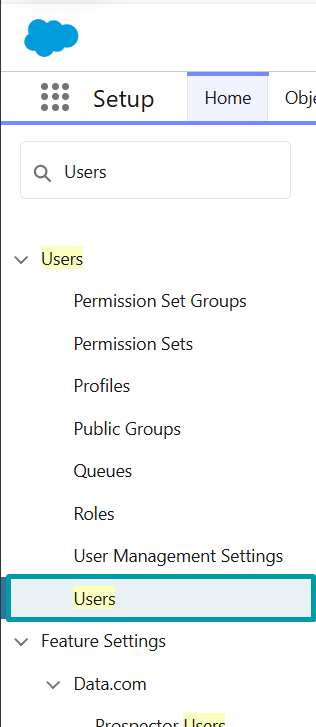
Go to Setup → Users
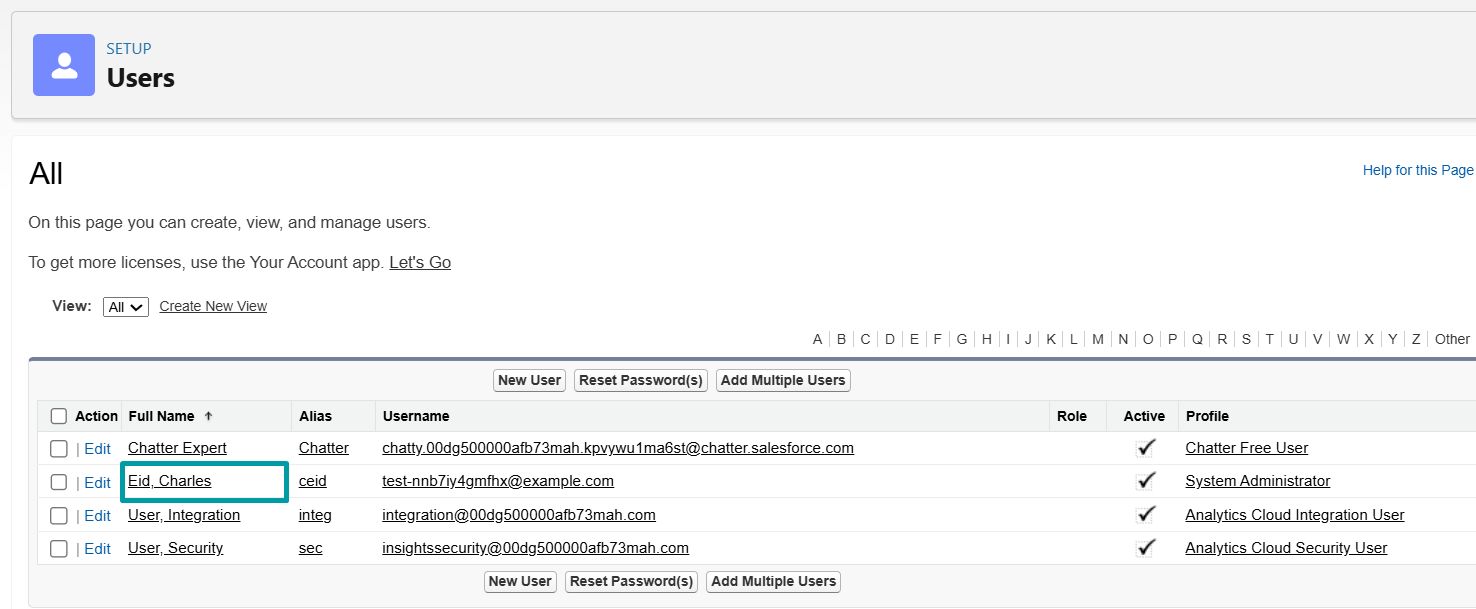
Go to the desired User
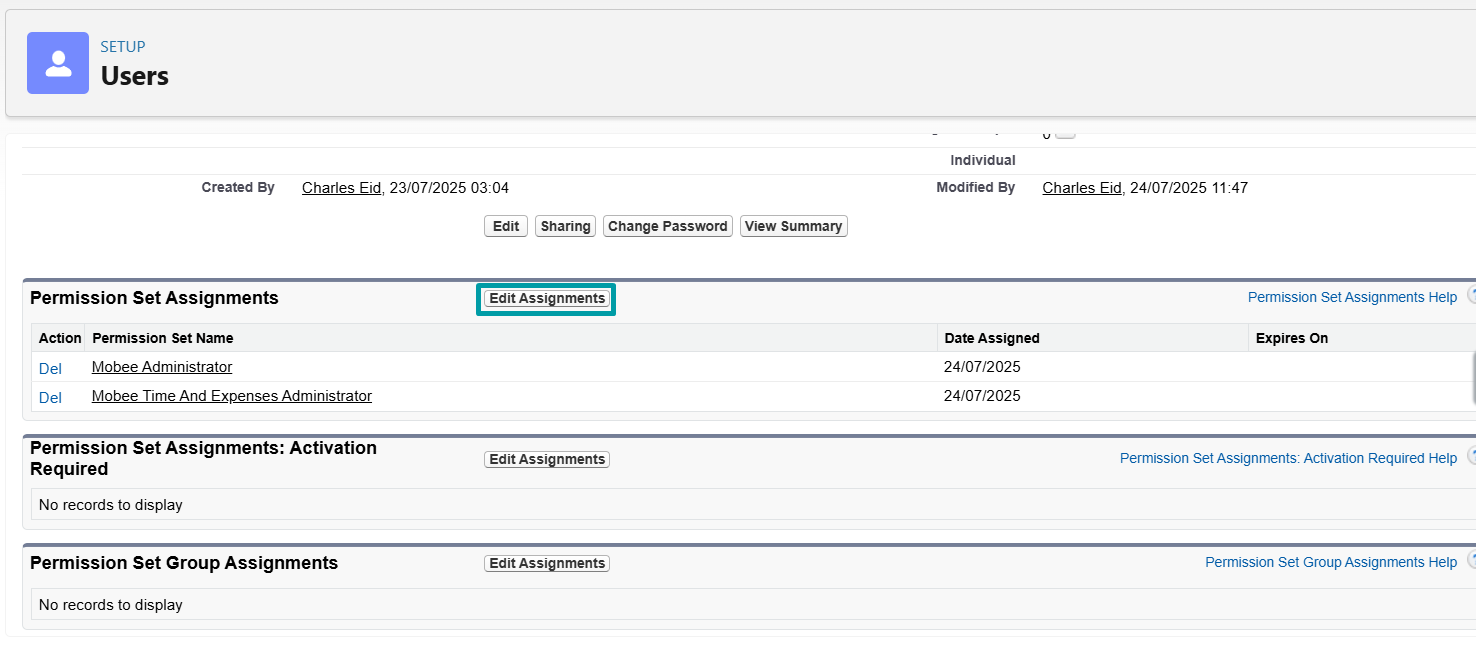
In the user detail page, scroll down to Permission Set Assignments → Click "Edit Assignments"
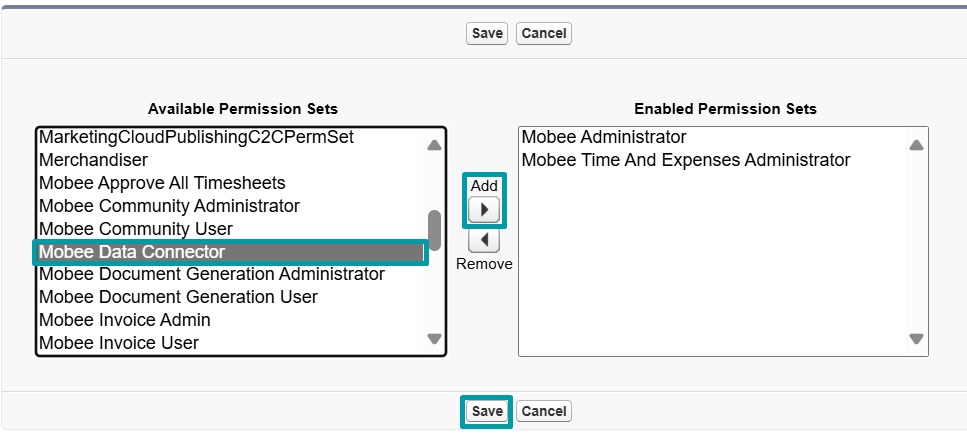
Select
Mobee Data Connectorfrom the list on the left → Click "Add" → Save
Verify that the permission set is now listed under the user's assignments

Create a Data Connector
Open the Data Connector tab
- In the Salesforce App Launcher, search for Data Connectors.
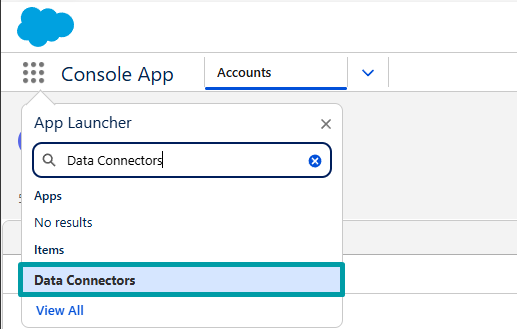
Create a new Data Connector
- Click New.

Fill in the connector details
- Enter a Connector Name
- Select the appropriate Connector Type
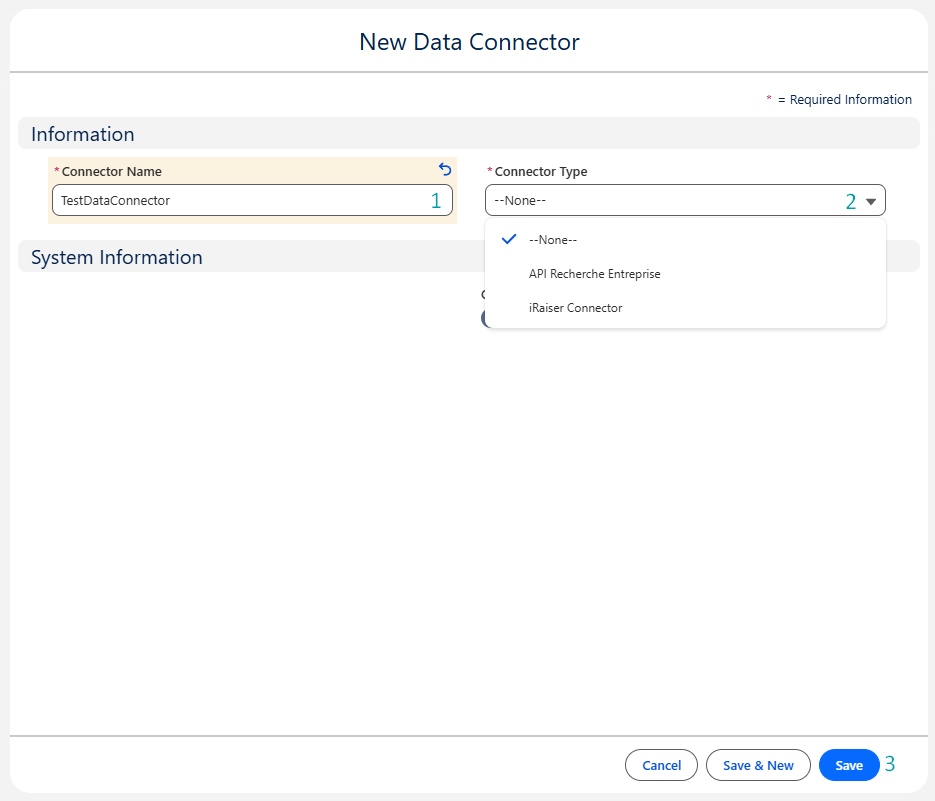
📌 After saving, your connector is ready to be linked to table definitions and mappings.
Connector-specific Configuration
Once the steps above are completed, continue with the configuration guide for your specific connector:
| Data Connector | Documentation |
|---|---|
| Recherche Entreprise | View Guide |
| iRaiser | (Coming soon) |
📌 Each connector may require additional setup steps depending on its API structure and business use case.